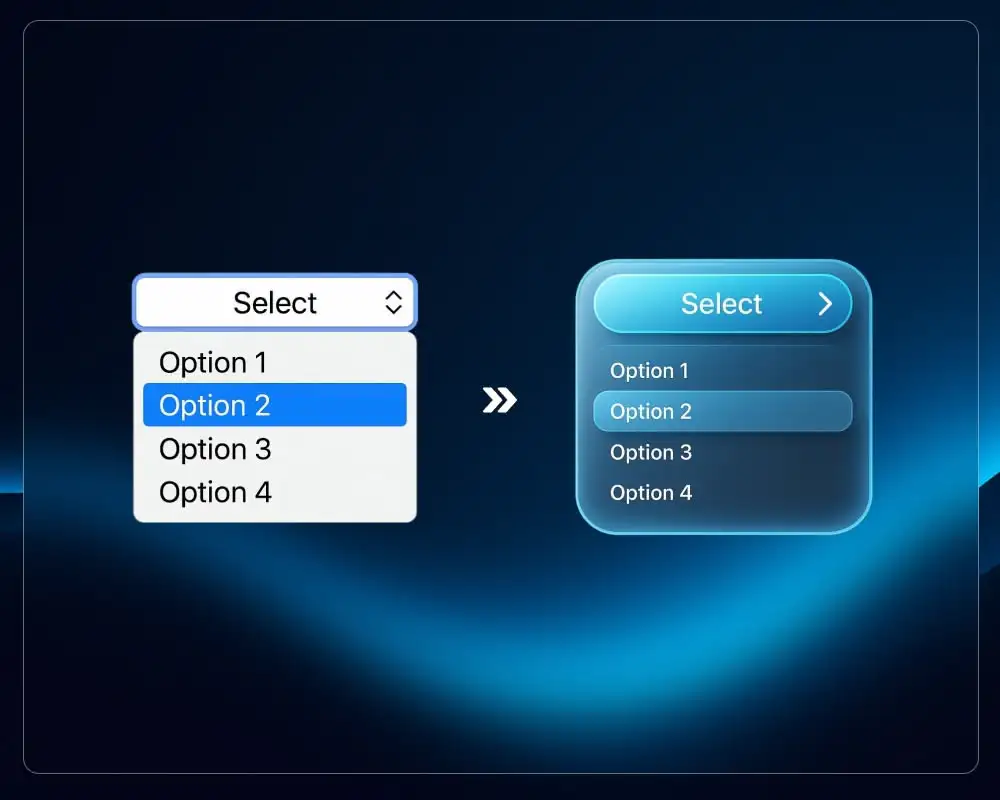
HTML elementy <select> majú štandardne vlastné štýlovanie prehliadača.
Na modernej Elementor webstránke to zvyčajne znamená:
- nekonzistentný vzhľad medzi Chrome, Safari, Firefox
- obmedzenú kontrolu nad šípkou, zaoblením rohov a medzerami
- dropdown, ktorý jednoducho nezapadá do zvyšku vášho rozhrania
Ak používate JetSmartFilters, mnohé z vašich filtrov sú postavené na <select>. Funkčnosť je v poriadku, ale vizuálne to často vyzerá ako starý predvolený formulárový prvok vložený do čistého dizajnu.
Bežnou "opravou" je skryť select a nahradiť ho kompletne vlastným HTML. Ak však toto vlastné rozhranie nie je správne synchronizované s pôvodným <select>, môžete jednoducho rozbiť:
- logiku filtrov
- správanie automatického odosielania
- integrácie s ďalšími pluginmi
V tomto návode použijeme čistejší prístup, ktorý:
- ponecháva pôvodný
<select>na mieste ako jediný zdroj pravdy - skryje iba natívne rozhranie prehliadača
- vykreslí plne štýlovateľný vlastný dropdown navrch
- zostáva kompatibilný s JetSmartFilters (vrátane automatického odosielania)
Poďme krok za krokom.
Čo vytvárame: Vlastný štýlovaný Select Dropdown pre WordPress a Elementor
Myšlienka je jednoduchá:
- Skryť natívny
<select class="jet-select__control">. - Použiť jeho wrapper
.jet-selectako kontajner pre naše vlastné rozhranie. - Vytvoriť vlastné "tlačidlo", ktoré zobrazuje aktuálne vybraný text.
- Vygenerovať dropdown zoznam z pôvodných
<option>elementov. - Keď používateľ klikne na položku:
- aktualizovať podkladový
<select> - aktualizovať viditeľný text
- zvýrazniť vybranú položku
- vyvolať
changeevent
- aktualizovať podkladový
- Ak sa spoliehate na automatické odosielanie JetSmartFilters, zachovať toto správanie.
Výsledok:
Vyzerá ako moderný vlastný komponent, ale správa sa ako natívny <select>.
Krok 1: Pridajte CSS na štýlovanie natívneho Select Dropdownu vo WordPress
CSS nižšie je zámerne neutrálne:
- žiadne CSS custom properties
- žiadne Elementor globálne tokeny
- žiadne projektovo špecifické fonty alebo SVG
- všetko je pripravené na skopírovanie
Môžete ho umiestniť do:
- Vzhľad → Prispôsobiť → Doplnkové CSS, alebo
- Elementor Nastavenia webu → Vlastné CSS, alebo
- štýlu vašej detskej témy.
/* Hide native select control */
select.jet-select__control {
  display: none !important;
}

/* Wrapper positioning (JetSmartFilters select wrapper) */
.jet-smart-filters-select,
.jet-select {
  position: relative;
  /* width locked in JS */
  min-width: 160px;
}

/* Hide the native apply-filters button */
.apply-filters {
  display: none !important;
}

/* Closed "button" */
.jet-select .select-selected {
  display: flex;
  align-items: center;
  justify-content: space-between;
  width: 100%;
  box-sizing: border-box;

  /* neutral, reusable typography */
  font-family: sans-serif;
  font-size: 16px;
  font-weight: 600;
  text-transform: uppercase;
  line-height: 1.4;

  background: transparent;
  border: none;
  box-shadow: none;
  border-radius: 8px;
  padding: 12px 40px 12px 24px;
  cursor: pointer;
  user-select: none;
}

/* Custom arrow icon (SVG placeholder) */
.jet-select .select-selected::after {
  content: "";
  position: absolute;
  right: 16px;
  top: 50%;
  transform: translateY(-50%);
  width: 12px;
  height: 12px;
  background-image: url("YOUR-ARROW-ICON-SVG-URL-HERE.svg"); /* replace with your SVG icon URL */
  background-repeat: no-repeat;
  background-size: contain;
  background-position: center;
  pointer-events: none;
}

/* Rounded corners when open */
.jet-select .select-selected.select-arrow-active {
  border-radius: 8px 8px 0 0;
}

/* Dropdown menu */
.jet-select .select-items {
  position: absolute;
  top: 100%;
  left: 0;
  width: 100%;
  z-index: 9999;

  background-color: #ffffff;
  border: 1px solid #d1d5db;
  border-radius: 16px;
  box-shadow: rgba(0, 0, 0, 0.12) 0px 7px 29px 0px;

  /* allow full expansion */
  max-height: none;
  overflow: visible;

  /* layout items centered with gap */
  display: flex;
  flex-direction: column;
  align-items: center;
  gap: 16px;
  padding: 24px 4px;
  box-sizing: border-box;
}

/* Hide when JS applies .select-hide */
.jet-select .select-items.select-hide {
  display: none !important;
}

/* Each dropdown item */
.jet-select .select-items div {
  display: inline-block;
  white-space: nowrap;

  font-family: sans-serif;
  font-size: 24px;
  font-weight: 700;
  text-transform: uppercase;
  line-height: 24px;
  color: #111827;

  background-color: #ffffff;
  padding: 4px 24px;
  cursor: pointer;
  user-select: none;
  text-align: center;
  transition: background-color 0.3s, color 0.3s;
  border-radius: 100px;
}

/* Hover & selected state */
.jet-select .select-items div:hover,
.jet-select .select-items .same-as-selected {
  background-color: #f3f4f6;
  color: #111827;
}

/* Utility class from JS (backup) */
.select-hide {
  display: none !important;
}

/* Existing filters-group layout */
.jet-filters-group {
  display: flex;
  flex-direction: row;
  gap: 16px;
  margin: 0 !important;
}

.jet-filter {
  margin: 0 !important;
}

/* Responsive tweaks */
@media (max-width: 767px) {
  .jet-filter {
    width: 100%;
  }
  .jet-filters-group {
    gap: 8px;
  }
}
Toto vám už dáva neutrálny, čistý a moderný vzhľad dropdownu. Ak ho budete chcieť neskôr prispôsobiť vašej značke, jednoducho aktualizujte farby, font a zaoblenie rohov.
Krok 2: Pridajte JavaScript na vytvorenie vlastného Dropdown rozhrania (kompatibilné s JetSmartFilters)
Script nižšie:
- nájde všetky
.jet-selectwrappery - zabezpečí, aby existovala predvolená možnosť "Any" (alebo použije
data-default-label) - vytvorí viditeľné "tlačidlo" na základe aktuálne vybranej možnosti
- vytvorí dropdown zoznam z
<option>elementov - udržiava podkladový
<select>synchronizovaný - spustí automatické odosielanie JetSmartFilters kliknutím na
.apply-filters__button
Pridajte ho cez HTML widget v rovnakej šablóne ako vaše filtre, alebo ho zaregistrujte globálne cez vašu tému.
<script>
document.addEventListener('DOMContentLoaded', function() {
  var selects = document.getElementsByClassName("jet-select");

  Array.prototype.forEach.call(selects, function(wrapper) {
    var sel = wrapper.getElementsByTagName("select")[0];
    if (!sel) return;

    // Ensure a default empty option at the top
    if (!Array.prototype.some.call(sel.options, function(o) { return o.value === ""; })) {
      var emptyOpt = document.createElement("option");
      emptyOpt.value = "";
      emptyOpt.textContent = sel.getAttribute("data-default-label") || "Any";
      sel.insertBefore(emptyOpt, sel.firstChild);
      sel.selectedIndex = 0;
    }

    // Create the visible selected DIV
    var selectedDiv = document.createElement("DIV");
    selectedDiv.className = "select-selected";
    selectedDiv.innerHTML = sel.options[sel.selectedIndex].innerHTML || (sel.getAttribute("data-default-label") || "Any");
    wrapper.appendChild(selectedDiv);

    // Optionally lock wrapper width based on initial content
    var rect = selectedDiv.getBoundingClientRect();
    if (rect.width) {
      wrapper.style.width = rect.width + "px";
    }

    // Build dropdown menu
    var listDiv = document.createElement("DIV");
    listDiv.className = "select-items select-hide";

    Array.prototype.forEach.call(sel.options, function(opt) {
      var item = document.createElement("DIV");
      item.innerHTML = opt.innerHTML;

      item.addEventListener("click", function() {
        var selectElement = wrapper.querySelector("select");
        var display = wrapper.querySelector(".select-selected");
        var options = selectElement.options;

        Array.prototype.forEach.call(options, function(o, idx) {
          if (o.innerHTML === item.innerHTML) {
            selectElement.selectedIndex = idx;
            display.innerHTML = item.innerHTML;

            // highlight selected item in the custom list
            listDiv.querySelectorAll(".same-as-selected").forEach(function(el) {
              el.classList.remove("same-as-selected");
            });
            item.classList.add("same-as-selected");

            // Trigger change so JetSmartFilters can react
            selectElement.dispatchEvent(new Event('change'));
          }
        });

        // Close dropdown after selection
        display.click();
      });

      listDiv.appendChild(item);
    });

    wrapper.appendChild(listDiv);

    // Toggle dropdown on click
    selectedDiv.addEventListener("click", function(e) {
      e.stopPropagation();
      closeAllSelect(this);
      this.nextSibling.classList.toggle("select-hide");
      this.classList.toggle("select-arrow-active");
    });
  });

  function closeAllSelect(current) {
    var lists = document.querySelectorAll(".jet-select .select-items");
    var selected = document.querySelectorAll(".jet-select .select-selected");

    lists.forEach(function(list, idx) {
      if (selected[idx] !== current) {
        list.classList.add("select-hide");
      }
    });

    selected.forEach(function(el) {
      if (el !== current) {
        el.classList.remove("select-arrow-active");
      }
    });
  }

  // Close all dropdowns when clicking outside
  document.addEventListener("click", function() {
    closeAllSelect(null);
  });

  // JetSmartFilters auto-submit logic
  document.querySelectorAll('.jet-select__control').forEach(function(sel) {
    sel.addEventListener('change', function() {
      var btn = document.querySelector('.apply-filters__button');
      if (btn) btn.click();
    });
  });
});
</script>
Kam vložiť kód pre vlastný Select v Elementore alebo WordPress
Máte dve hlavné možnosti:
1. Do šablóny, ktorá obsahuje JetSmartFilters Pridajte HTML widget (napríklad na spodok stránky alebo šablóny) a vložte:
- blok
<style>…</style>a - blok
<script>…</script>
Tým zostane všetko obmedzené na daný konkrétny layout.
2. Globálne cez vašu tému alebo plugin na kódové snippety Ak používate rovnaký štýlovaný dropdown na viacerých šablónach, môže mať zmysel:
- zaregistrovať globálny CSS súbor so štýlmi a
- zaregistrovať globálny JS súbor so scriptom.
Pokiaľ HTML štruktúra nasleduje vzor JetSmartFilters (.jet-select wrapper + .jet-select__control select vnútri), script ho rozpozná.
Záver k štýlovaniu natívnych Select polí vo WordPress
Namiesto boja s predvoleným štýlovaním selectu v prehliadači alebo úplného nahradenia poľa vlastným komponentom vám tento prístup dáva to najlepšie z oboch svetov:
- natívny
<select>zostáva jediným zdrojom pravdy - JetSmartFilters a ďalšie pluginy sa naň môžu naďalej spoliehať
- používateľ vidí plne vlastný, moderný dropdown, ktorý zodpovedá vášmu dizajnovému systému
Výsledkom je dropdown, ktorý je:
- vizuálne konzistentný s vaším Elementor dizajnom
- kompatibilný s JetSmartFilters (vrátane automatického odosielania)
- jednoducho znovupoužiteľný na budúcich projektoch (žiadne projektovo špecifické hodnoty)
Ak ho chcete ďalej prispôsobiť, môžete:
- upraviť farby, typografiu a zaoblenie v CSS
- pridať jednoduché animácie pri otváraní dropdownu
- rozšíriť logiku o klávesovú navigáciu pre ešte lepšiu prístupnosť
Ak potrebujete pomoc s podobnými úpravami, pozrite si moje služby Elementor vývoja a WordPress vývoja. Môže vás zaujímať aj návod na zobrazenie ACF repeater polí v Elementor Loop Templates.