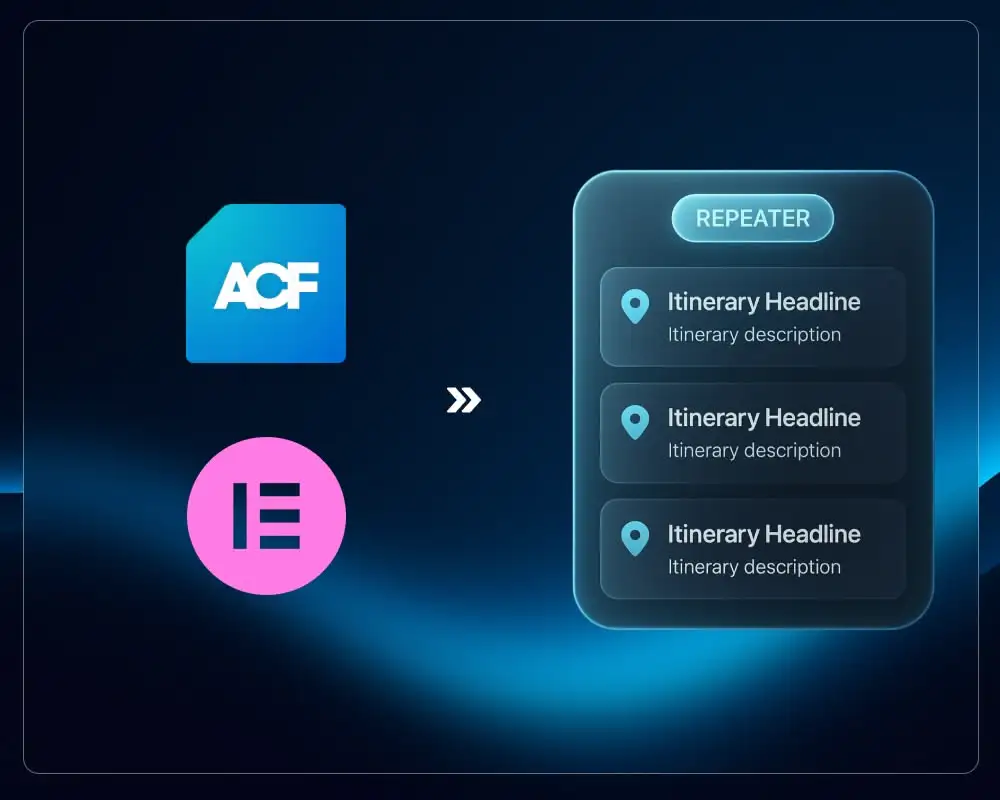
Elementor is great for designing dynamic layouts, but it has one big limitation:
Elementor cannot loop through ACF Repeater rows natively.
The Loop Grid widget works only with posts, CPTs, terms, or WP Queries, but not repeater rows.
If you want to display repeated items such as:
- Tour itineraries
- Capacity tables
- Feature lists
- Timelines
- Pricing breakdowns
- Icons + text rows
…Elementor simply has no built‑in repeater loop.
This guide shows how to fix that using two shortcodes:
1. A grid shortcode that loops through each repeater row and renders an Elementor template.
2. A field shortcode that outputs a specific value from the current repeater row.
Together, they give you full repeater → Elementor Loop Item functionality.
Why You Need This Technique
ACF Repeaters are excellent for structured data, but Elementor doesn't know how to iterate through repeater rows on its own.
With this shortcode system you get:
- ACF repeater rows rendered as a grid in Elementor
- Each row displayed using an Elementor Loop Item Template
- Full design control inside Elementor
- Support for text, images, icons, dashicons, URLs, etc.
- A clean, reusable, non‑plugin solution
This approach works for any Custom Post Type using ACF.
Step 1: Create an ACF Repeater on Your Post Type
Example repeater name: tour_itineraries
Inside it, you may have subfields such as:
tour_itineraries_icontour_itineraries_headlinetour_itineraries_description
You can use any naming structure. Your repeater name just needs to match what you reference in the grid shortcode.
Step 2: Create an Elementor Loop Item Template
This template will define how one repeater row looks.
Inside the template, you insert text or icon widgets and replace their content with shortcodes like:
[tour_itinerary_field key="tour_itineraries_headline"]
[tour_itinerary_field key="tour_itineraries_description"]
[tour_itinerary_field key="tour_itineraries_icon" type="dashicon"]
Each shortcode will pull data from the current repeater row.
You can style this template with full Elementor controls: typography, spacing, icons, backgrounds, motion effects, everything.
Step 3: Render the Repeater as a Grid
On your front-end page (or Elementor layout), insert:
[tour_itineraries_grid template_id="123"]
Where:
tour_itineraries_gridis the shortcodetemplate_idis the Elementor Loop Item Template ID
This outputs:
- A grid wrapper
- One template instance for each repeater row
Result: Elementor becomes a full repeater renderer.
The Grid Shortcode (Loop Through Repeater Rows)
This is the shortcode that loops through repeater rows and renders the template.
// Grid Shortcode
// Usage:
// [tour_itineraries_grid template_id="123"]
// [tour_itineraries_grid template_id="123" field="tour_itineraries"]
function tour_itineraries_grid_shortcode( $atts ) {
    $atts = shortcode_atts([
        'template_id' => '',
        'field'       => 'tour_itineraries', // default repeater name
    ], $atts, 'tour_itineraries_grid');

    $template_id = intval($atts['template_id']);
    if (!$template_id) return '';

    if (!function_exists('get_field')) return '';

    $rows = get_field($atts['field'], get_the_ID());
    if (!is_array($rows) || empty($rows)) return '';

    global $tour_itineraries_current_row;

    $out = '<div class="tour-itineraries-grid">';

    foreach ($rows as $row) {
        $tour_itineraries_current_row = $row;

        $out .= '<div class="tour-itineraries-grid-item">';
        $out .= do_shortcode('[elementor-template id="' . $template_id . '"]');
        $out .= '</div>';
    }

    $out .= '</div>';

    $tour_itineraries_current_row = null;

    return $out;
}
add_shortcode('tour_itineraries_grid', 'tour_itineraries_grid_shortcode');
The Field Shortcode (Outputs Data From Each Row)
This shortcode outputs individual fields from the current repeater row.
// Field Shortcode
// Usage inside Elementor Template:
// [tour_itinerary_field key="tour_itineraries_headline"]
// [tour_itinerary_field key="tour_itineraries_description"]
// [tour_itinerary_field key="tour_itineraries_icon" type="dashicon"]
function tour_itinerary_field_shortcode( $atts ) {
    global $tour_itineraries_current_row;

    $atts = shortcode_atts([
        'key'  => '',
        'esc'  => 'html',
        'type' => 'auto', // auto | dashicon
    ], $atts, 'tour_itinerary_field');

    if (empty($atts['key']) || !is_array($tour_itineraries_current_row)) return '';

    $value = $tour_itineraries_current_row[$atts['key']] ?? '';

    if (is_array($value)) {
        if (isset($value['url'])) $value = $value['url'];
        elseif (isset($value['ID'])) $value = wp_get_attachment_url($value['ID']);
        else $value = '';
    }

    if ($atts['type'] === 'dashicon') {
        if (!is_string($value) || $value === '') return '';

        $class = strpos($value, 'dashicons') === false
            ? 'dashicons ' . trim($value)
            : 'dashicons ' . trim($value);

        return '<span class="' . esc_attr($class) . '"></span>';
    }

    if ($atts['esc'] === 'attr') return esc_attr($value);
    if ($atts['esc'] === 'html') return esc_html($value);

    return $value;
}
add_shortcode('tour_itinerary_field', 'tour_itinerary_field_shortcode');
Code Breakdown: How the Shortcodes Work
1. Global "current row" variable
Both shortcodes share a global variable:
global $tour_itineraries_current_row;
- The grid shortcode sets this variable to the current repeater row inside the loop.
- The field shortcode reads from this variable when you call
[tour_itinerary_field].
This is what makes the "current row" available inside your Elementor Loop Item Template.
2. Grid shortcode: turning rows into a loop
Key parts of the grid shortcode:
$rows = get_field($atts['field'], get_the_ID());
...
foreach ($rows as $row) {
    $tour_itineraries_current_row = $row;
    $out .= do_shortcode('[elementor-template id="' . $template_id . '"]');
}
get_field()reads the entire repeater from ACF as a PHP array.foreach ($rows as $row)loops through each row.- On each iteration,
$tour_itineraries_current_rowbecomes the current row. do_shortcode('[elementor-template ...]')renders your Elementor Loop Item Template once per row.
If you ever want to reuse this pattern for another repeater (e.g. venues_capacity), you can:
- duplicate the shortcode function,
- change the shortcode name,
- change the default
fieldvalue and global variable name.
3. Field shortcode: reading a value from the row
Core logic:
$value = $tour_itineraries_current_row[$atts['key']] ?? '';
Whatever you pass as key="..." becomes the array index. So:
[tour_itinerary_field key="tour_itineraries_headline"]
…reads:
$tour_itineraries_current_row['tour_itineraries_headline'];
If the ACF subfield is an image or a link (array), the shortcode tries to resolve it into a URL:
if (is_array($value)) {
    if (isset($value['url'])) $value = $value['url'];
    elseif (isset($value['ID'])) $value = wp_get_attachment_url($value['ID']);
    else $value = '';
}
This means you can already use it for image sources or background URLs.
4. Output types and escaping
The shortcode supports:
esc="html"(default) → safe for text nodesesc="attr"→ safe inside attributesesc="none"→ no escaping (only if you trust the content)
And a special type="dashicon" mode:
[tour_itinerary_field key="tour_itineraries_icon" type="dashicon"]
This expects a string like dashicons-location and renders:
<span class="dashicons dashicons-location"></span>
You can easily add new types if you need custom output.
5. How to add a new field (simple case)
If you only want to output another ACF subfield from the same repeater row, you don't need to change PHP at all.
- Add a new subfield in ACF, e.g.
tour_itineraries_duration. - In your Elementor template, use:
[tour_itinerary_field key="tour_itineraries_duration"]
That's it. The shortcode will automatically read the new array key from the current row.
6. How to add a new output type (advanced)
If you want a custom rendering mode (for example an <img> tag instead of just the URL), you can extend the type switch.
Example: add type="image" support.
// After resolving $value
if ($atts['type'] === 'image') {
    if (!$value) return '';
    return '<img src="' . esc_url($value) . '" alt="" loading="lazy" />';
}
Usage inside Elementor:
[tour_itinerary_field key="tour_itineraries_image" type="image"]
This pattern lets you gradually add more specialized output types based on your project needs.
Example Workflow (Complete)
1. Add an ACF Repeater to your CPT
Name it tour_itineraries.
2. Add subfields
- icon
- headline
- description
3. Create Loop Item Template in Elementor
Insert:
[tour_itinerary_field key="tour_itineraries_icon" type="dashicon"]
[tour_itinerary_field key="tour_itineraries_headline"]
[tour_itinerary_field key="tour_itineraries_description"]
4. Display the grid
Place this on a page:
[tour_itineraries_grid template_id="123"]
Done. You now have a fully dynamic repeater‑powered grid in Elementor.
Final Thoughts
Elementor doesn't natively support looping through ACF repeater rows, but with two lightweight shortcodes, you can unlock full repeater rendering using Elementor templates.
This method is:
- developer‑friendly
- designer‑friendly (edit layout in Elementor)
- fast
- stable
- plugin‑free
You can adapt this pattern for any ACF repeater in your WordPress projects, giving you complete control over how repeater data is displayed while maintaining full Elementor design capabilities.
If you need professional help with setups like this, explore my Elementor development and WordPress development services. For another Elementor customization technique, see how to build a custom styled dropdown in WordPress with Elementor.