The honest, end-to-end walkthrough. No upsells, no shortcuts hidden behind a sign-up form, no "in five minutes!" lies. Built and verified on a real client account in May 2026.
TL;DR
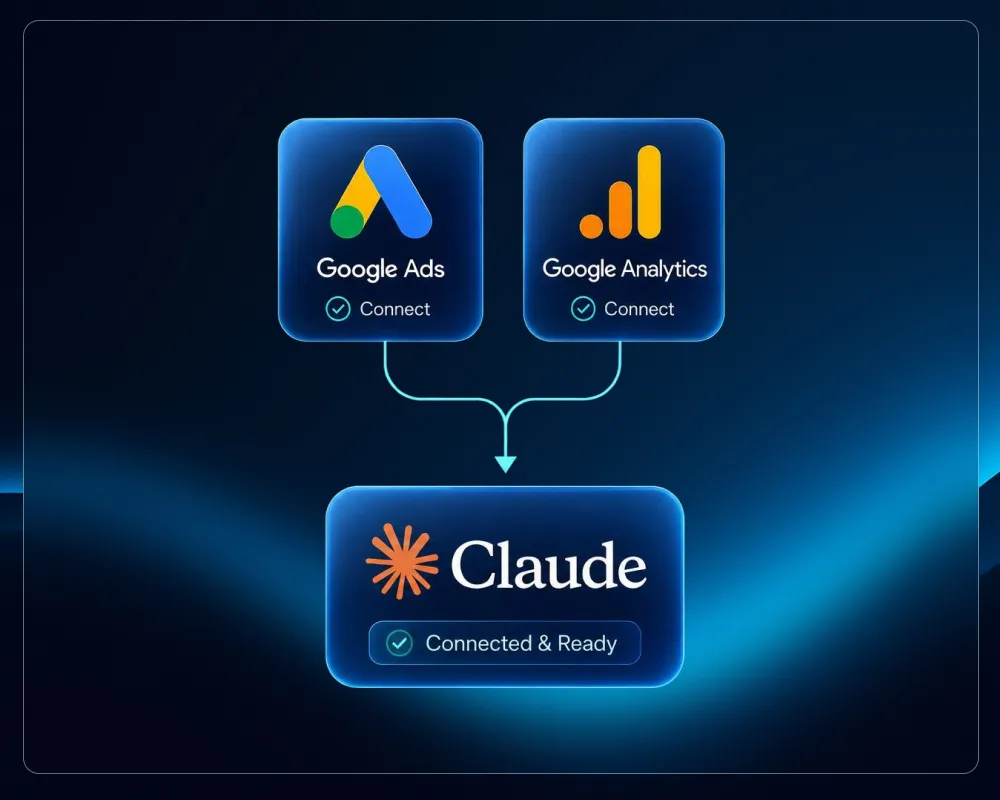
You can connect Claude Desktop to Google Ads and Google Analytics 4 for free using two official MCP servers published by Google. No monthly subscription, no third-party SaaS, no middleware. The MCP servers run locally on your machine using your own Google credentials, and once connected, Claude can audit campaigns, identify wasted spend, run keyword analyses, query GA4 reports, and cross-reference both platforms in a single conversation.
The short answer on how to do it: install the Google Ads MCP server and Google Analytics MCP server published by Google, authenticate with your Google account using the gcloud CLI, and point Claude Desktop at both via its config file. The GA4 side works the same day. The Google Ads side requires a developer token approved by Google, which takes 1-3 business days and is not guaranteed on the first try.
The full walkthrough is below. If you want the quick version: GA4 is straightforward and immediately useful. Google Ads requires patience, a well-written application, and the willingness to wait on Google's compliance team. Budget 2-3 hours of hands-on work spread across a few days.
If that sounds like too much, paying €15-€90/month for a managed service like Pipeboard, Adzviser, Porter, or Ryze AI is a reasonable alternative. This guide covers the DIY path in full so you can decide for yourself.
Who this guide is for
Read this if you are:
- A digital marketer or SEO/PPC consultant managing 1-10 client accounts
- A small agency that doesn't want recurring SaaS fees on top of Claude Pro
- A developer or technically-inclined marketer comfortable with Terminal commands
- Someone with at least one Google Ads account and a Google account
- Someone who wants their AI assistant tied into live ad data without trusting a middleman with API tokens
Don't read this if you are:
- A marketing director at a large company — the procurement overhead of doing this DIY isn't worth your time; buy a managed service
- Someone unwilling to follow detailed instructions step by step (the steps work — but you have to do them in order and read carefully)
- Someone who needs write access to Google Ads (this is a read-only setup; write access requires either a paid tool or a more advanced third-party MCP)
- Someone who needs this working in the next hour — there's an unavoidable 1-3 business day approval wait, with no way to speed it up
Honest expectations before you start
This section exists because most guides skip it and then readers get frustrated when things don't go smoothly.
The Google Ads side is a bureaucratic process, not just a technical one. Getting API access requires submitting an application to Google's compliance team. They review it manually. They may email you asking for more details. They may ask you to revise your design document. They may take longer than 3 business days. In some cases — particularly if your company website isn't professional-looking, your contact email looks like spam, or your application is too vague — they will reject it and ask you to resubmit.
This is not a reflection of your technical ability. It's Google's standard process for anyone who wants API access, and it exists to prevent abuse. The design document template in this guide is specifically written to pass that review, but no template guarantees approval.
What you should realistically plan for:
- GA4 works immediately, no approval needed. You can start querying analytics data the same day you finish setup.
- Google Ads: budget 1-3 business days for approval, but be mentally prepared for up to a week and one round of back-and-forth.
- If rejected: read Google's feedback carefully, revise the design document or clarify your use case, resubmit. A second submission that addresses their specific concerns usually gets approved.
- If you're doing this for a client urgently: set up GA4 first, get value from it immediately, and treat the Google Ads approval as a background process running in parallel.
The technical steps are genuinely copy-paste. The difficulty isn't the Terminal commands — it's the patience to wait on Google and the attention to not skip details in the application.
Difficulty rating
Technically accessible, bureaucratically slow. You don't need to be a developer or know how Python, JSON, or OAuth work. Most commands in this guide are pure copy-paste. But "beginner-friendly" would be the wrong word for the overall experience — the process has multiple stages, involves waiting on Google, and requires careful attention throughout.
The exceptions are clearly flagged: a handful of commands and one config file contain placeholders like YOUR_PROJECT_ID that you must swap for your own values before running. Every one of those placeholders is listed in the Placeholder reference section below, and every code block that contains them carries a ⚠️ warning right above it.
What you actually need is:
- Patience to do steps in the right order, including the ones that feel tedious
- Attention to placeholder values — when you see ⚠️ above a code block, swap the
YOUR_*parts for your real values before running - Calm when something errors out — error messages are usually clear, and the fixes are documented in the troubleshooting section at the end
- Willingness to wait 1-3 business days (possibly more) for Google's approval before the Ads side returns real data
- Resilience if Google asks for more information or requests a revised application — this is normal, not a failure
If you can follow a recipe in the kitchen — read step 3 before doing step 4, measure twice, don't skip the pre-heating — you can do the technical parts. The approval process is out of your hands once submitted.
Estimated time investment:
- Hands-on setup: 2-3 hours total (you can split it across two evenings)
- Approval wait: 1-3 business days minimum for the Google Ads developer token; budget for up to a week with possible back-and-forth
- GA4 is immediately usable after setup — no approval needed
- Optional Meta Ads later: Meta has an official MCP too, but its rollout is account-by-account; you may need to wait for Meta to enable your specific account
What you'll have at the end
- ✅ Claude Desktop (Mac or Windows) with two new MCP connections:
google-adsandgoogle-analytics - ✅ Read-only access to all your Google Ads accounts under a Manager Account
- ✅ Read-only access to all GA4 properties your Google account can see
- ✅ Cross-platform queries — "compare last month's Google Ads paid search spend to GA4 organic traffic" in one chat
- ✅ Multi-machine support — set it up on your own laptop, then on a teammate's laptop, sharing one Cloud project
- ✅ Multi-client support — each new client is one user invitation away, no extra config
- ✅ Monthly cost: €0
- ✅ Self-hosted, vendor-independent, sanctioned by Google itself
Placeholder reference
Throughout this guide, code blocks and templates use placeholders that you must replace with your own values. They're written in ALL_CAPS_WITH_UNDERSCORES (in commands and JSON) or [in square brackets] (in document templates) so they're easy to spot. Every code block containing one is marked with a ⚠️ warning.
Here's the full list. Save this somewhere — a notes file, a sticky note, whatever — because you'll be referring back to it:
| Placeholder | What it is | Where you get it | Example |
|---|---|---|---|
YOUR_PROJECT_ID |
Google Cloud project ID | Cloud Console after creating the project (Step 2.1) | your-project-id-123456 |
YOUR_DEVELOPER_TOKEN |
Google Ads API developer token, 22 characters | API Center after Step 1.2 | EXAMPLEtoken1234567890 |
YOUR_MCC_ID_NO_DASHES |
Manager Account ID, 10 digits, no dashes | Top of Google Ads UI after Step 1.1 (strip the dashes from 123-456-7890 → 1234567890) |
1234567890 |
[your-property-id] |
GA4 property ID, 9 digits | GA4 Admin → Property settings | 123456789 |
[your-customer-id] |
A specific Google Ads account ID, 10 digits, no dashes | Top of Google Ads UI when viewing the account | 9876543210 |
[Your Company] |
Your business name | You | AURIA Digital |
[your domain email] |
Email at your business domain (not Gmail) | You | info@yourcompany.com |
[today] |
Today's date | You | May 9, 2026 |
Tip: before you start, fill in this table with your actual values in a notes file. Then it's just find-and-replace as you go.
Why this works at all (the architecture)
This is the part most tutorials skip, but it's the key to understanding why your setup will keep working in 4, 6, or 12 months:
You (in Claude Desktop on your Mac)
        │
        ▼
Claude Desktop reads ~/Library/Application Support/Claude/claude_desktop_config.json
        │  (config tells it: "spawn this MCP server when you start")
        ▼
Local MCP server (Google Ads or GA, runs as a Python process)
        │  (uses your Google credentials stored in ~/.config/gcloud/)
        ▼
Google's API (Google Ads API or GA4 Data API)
        │
        ▼
Live data flows back through the chain
Three things to notice:
- Your credentials never leave your machine. They sit in
~/.config/gcloud/application_default_credentials.jsonon your Mac. Anthropic doesn't see them. No third-party server holds them. - Both MCPs are official Google software. github.com/googleads/google-ads-mcp is published by Google's Ads API team. github.com/googleanalytics/google-analytics-mcp is published by Google's Analytics team.
- Everything runs locally. Restart your Mac, restart Claude Desktop — the MCPs come back up. Stop using Claude — nothing on Google's side breaks.
This is the same architecture managed services like Ryze AI use, except they run the MCP server in their cloud and charge you for the convenience.
What you need before you start
Hardware / OS
- macOS 12+ (this guide is Mac-focused; Linux users can adapt easily; Windows users see the FAQ)
- A Mac account with admin password access
Software accounts
- Claude Pro or Max subscription (€20/month or higher) — MCP requires a paid Claude tier; the free tier doesn't support it
- Claude Desktop installed — claude.ai/download
- A Google account — Gmail or Google Workspace, doesn't matter
Google Ads / GA4 access
- Either a Google Ads account where your Google identity is a user, or a client willing to add you as a user on theirs
- Either a GA4 property where your Google identity has at least Viewer access, or the willingness to ask for it
If you don't have access yet, that's fine — you can still create the infrastructure and ask the client for access later.
Time
- 2-3 hours of focused setup
- 1-3 business days minimum of waiting for Google to approve your developer token (budget for more)
Cost
- €0/month in software fees
- Your existing Claude Pro/Max subscription (which you'd have anyway)
The full step-by-step
I'll walk through this in the order it actually needs to happen. Some steps wait on others; pay attention to what runs in parallel vs sequentially.
Phase 1 — Google Ads side (~30 min hands-on, then 1-3+ day wait)
Step 1.1 — Create a Google Ads Manager Account
A Manager Account (formerly MCC, "My Client Center") is required because only Manager Accounts can request Google Ads API developer tokens. You can't get a token issued to a regular advertiser account.
- Go to ads.google.com/home/tools/manager-accounts/
- Click Create a manager account
- Name it something professional and stable — e.g., "Your Company Marketing"
- Country: your country
- Currency: your preferred currency
- Click Submit
Save the 10-digit Manager Account ID shown at the top — you'll need it later.
If you already have one, skip this step.
Step 1.2 — Apply for a Developer Token
Sign in with the Manager Account selected at the top of Google Ads, then:
- Open ads.google.com/aw/apicenter
- Fill the API Access form:
- API contact email — use a domain email (e.g.
info@yourcompany.com), not Gmail - Company name — your business
- Company URL — must be live and load properly; Google checks it
- Company type — most likely "Agency/SEM" if you manage clients, or "Advertiser" if it's your own business
- Intended use — paste:
"Internal-use-only reporting and diagnostic tool. Connects to Google Ads via the official Google Ads MCP server (github.com/googleads/google-ads-mcp), released by Google in October 2025. Used exclusively for read-only campaign auditing and performance analysis. No mutations, no automated bid changes, no third-party data redistribution. Estimated daily API calls: under 1,000."
- Principal place of business — your country
- API contact email — use a domain email (e.g.
- Accept the Terms and Conditions
- Click Create token
You'll get a Test Account token immediately. It's a 22-character alphanumeric string. Save it somewhere secure (1Password, encrypted note).
Step 1.3 — Apply for Basic Access (this is the wait — and it's not guaranteed)
Test tokens can only query test accounts (sandboxes with fake data). To query real accounts, you need to upgrade to Basic Access. There's a button right under the token in API Center: Apply for Basic Access.
Before you click it, understand what you're signing up for:
This is a manual review process run by Google's compliance team. It is not instant, it is not automatic, and it is not guaranteed to go smoothly on the first submission. Google may email you asking for clarifications. They may request a revised design document. In some cases they will reject the application entirely if the company website doesn't look professional, the contact email appears unmonitored, or the application seems too vague. A rejection is not the end — you can revise and resubmit — but it adds days to the timeline.
With that said, the process is entirely survivable if you fill it out carefully. Here's how:
Key answers:
- Manager Account ID — the 10-digit number from Step 1.1
- Contact email — domain email (Google prefers this over Gmail; Gmail is a red flag)
- Ongoing relationship with Google rep — almost certainly No
- Company website URL — must be live and load; if it's under construction, fix it first
- Business model description — describe what your business actually does and how it uses Google Ads
- Design documentation — you have to upload a 1-2 page PDF describing your tool. This is the part where most applications get rejected for being too vague. The template below is written specifically to pass this review.
- Tool access — "Internal users only — employees only"
- Use of token with someone else's tool — Yes, with URL
github.com/googleads/google-ads-mcp - App Conversion Tracking — No
- Campaign types supported — list all major types (Search, Display, Performance Max, Shopping, Video, Demand Gen, App)
- Capabilities — tick only Reporting. Don't tick Account/Campaign Management or Keyword Planning Services unless you genuinely need them; they trigger stricter "Required Minimum Functionality" review.
The design document
Here's a template you can adapt. Save it as a PDF and upload to the design doc field.
⚠️ Replace these placeholders with your own values before saving: [Your Company] and [your company] (both cases appear in the body), [your-10-digit-id] (your Manager Account ID, dashes removed), [your domain email], [today]. They appear in multiple sections of the document — do a find-and-replace, don't just edit the header.
# Google Ads API Tool Design Document

**Company:** [Your Company]
**Manager Account ID:** [your-10-digit-id]
**Contact:** [your domain email]
**Date:** [today]

## 1. Overview
[Your company] is applying for Basic Access to the Google Ads API for
internal-use-only reporting and diagnostic workflows over our managed client
accounts. The tool is the official Google Ads MCP Server published by Google
in October 2025 (github.com/googleads/google-ads-mcp), paired with Anthropic's
Claude AI via Claude Desktop.

## 2. Architecture
The MCP server runs locally on staff machines. Authentication is via OAuth 2.0
against a Google Cloud project owned by [your company]. The developer token is
stored in environment variables and never transmitted to third parties.

## 3. Functionality
The MCP exposes three tools: list_accessible_customers, search (GAQL queries),
and get_resource_metadata. The tool is strictly read-only — it cannot create,
modify, pause, or delete any campaigns, ad groups, ads, keywords, budgets,
bids, or audiences. All optimization recommendations are implemented manually
in the Google Ads UI.

## 4. Use Cases
- Account audits and structural reviews
- Campaign performance reporting (impressions, clicks, cost, conversions, etc.)
- Search terms analysis for negative keyword opportunities
- Keyword quality score diagnostics
- Trend and anomaly detection

## 5. Data Handling
- No persistent storage; data is fetched per query and held in conversation context
- HTTPS / TLS 1.2+ for all transit (enforced by Google's API client)
- Not shared with or sold to third parties
- No PII collection beyond what GAQL exposes (e.g. search terms reports)

## 6. Access Control
- Developer token in environment variables on staff machines only
- OAuth scoped to [your company]'s Cloud project
- Used exclusively by [your company] employees and authorized contractors
- Clients have no access to the tool, token, or credentials

## 7. Volume
- Estimated daily API operations: under 1,000
- Estimated client accounts: 1–5 in next 12 months

## 8. Compliance
- Internal use only; not redistributed
- Compliant with Google Ads API Terms (no scraping, no token sharing,
  3-business-day disassociation on client request)
Submit. You'll get a confirmation email and a case ID. Save the case ID. Approval typically takes 1-3 business days, though a week is not unheard of. While you wait, do everything else below — the Cloud and Mac setup steps are completely independent of this approval.
Common reasons applications stall or get rejected: website not live, contact email unmonitored or Gmail, design doc too vague, ticking Campaign Management when you only need Reporting. If Google emails you asking for more information, reply to the same thread with the clarification — don't start a new application.
Phase 2 — Google Cloud project (~15 min)
This is independent of the Basic Access wait, so do it now.
Step 2.1 — Create the Cloud project
- Go to console.cloud.google.com
- Sign in with the Google account that owns the Manager Account
- Top bar → click the project dropdown → NEW PROJECT
- Name:
your-company-ads-mcp(lowercase, hyphens, no spaces) - Location: "No organization" is fine
- Click CREATE
Save the Project ID that's shown after creation. It may auto-generate something like your-company-ads-mcp-123456.
Step 2.2 — Enable the three APIs you need
Open each of these links (with your project selected at the top) and click ENABLE:
Each takes ~10 seconds.
Step 2.3 — Configure the OAuth consent screen
- Go to console.cloud.google.com/auth/audience
- User Type: External (Internal requires Google Workspace)
- Click CREATE
Branding section:
- App name:
Your Company Ads MCP - User support email: your domain email
- Application home page: your website URL
- Authorized domains: add your bare domain (e.g.
yourcompany.com) - Developer contact email: your email
Save and continue. Skip the scopes screen (don't add any). On the test users screen, add your own Gmail address.
Stay in Testing mode forever. Don't click "Publish to Production" — that triggers app verification you don't need for a personal/internal tool.
Step 2.4 — Create OAuth credentials
- Go to console.cloud.google.com/apis/credentials
- Click + CREATE CREDENTIALS → OAuth client ID
- Application type: Desktop app
- Name:
Your Company Ads MCP — Desktop Client - Click CREATE
- Click DOWNLOAD JSON in the popup. Save the file somewhere secure.
You now have all four credentials needed:
| Where it lives | |
|---|---|
| Developer Token | Google Ads API Center |
| Project ID | Cloud Console |
| OAuth Client ID + Secret | The downloaded JSON |
Phase 3 — Set up your Mac (~30 min)
Step 3.1 — Install Homebrew
In Terminal:
brew --version
If not installed:
/bin/bash -c "$(curl -fsSL https://raw.githubusercontent.com/Homebrew/install/HEAD/install.sh)"
After install, run the two PATH commands Homebrew prints (something like):
echo 'eval "$(/opt/homebrew/bin/brew shellenv)"' >> ~/.zprofile
eval "$(/opt/homebrew/bin/brew shellenv)"
Step 3.2 — Install Python 3.12 and pipx
brew install python@3.12
brew install pipx
pipx ensurepath
Close and reopen Terminal. Verify:
python3.12 --version
pipx --version
Step 3.3 — Install the gcloud CLI
brew install --cask google-cloud-sdk
Close and reopen Terminal. Verify:
gcloud --version
Step 3.4 — Move your OAuth JSON into a clean location
The downloaded JSON file from Step 2.4 is probably in your ~/Downloads folder with a filename like client_secret_123456-abcdef.apps.googleusercontent.com.json. The command below uses a wildcard (client_secret_*.json) to match it automatically, so for most people this is pure copy-paste:
mkdir -p ~/.config/google-ads-mcp
mv ~/Downloads/client_secret_*.json ~/.config/google-ads-mcp/oauth-client.json
ls -la ~/.config/google-ads-mcp/
⚠️ If you saved the file somewhere other than ~/Downloads, edit the second line to point to wherever you actually saved it (e.g. mv ~/Desktop/client_secret_*.json ~/.config/google-ads-mcp/oauth-client.json).
The ls -la at the end should show oauth-client.json in the directory. If it does, you're good.
Step 3.5 — Authenticate Application Default Credentials
This is the key auth step. It requests scopes for both Google Ads and Google Analytics in one shot. This command is pure copy-paste — $(whoami) is a shell expression that automatically resolves to your Mac username; you don't need to replace it.
gcloud auth application-default login \
  --scopes='https://www.googleapis.com/auth/adwords,https://www.googleapis.com/auth/cloud-platform,https://www.googleapis.com/auth/analytics.readonly' \
  --client-id-file=/Users/$(whoami)/.config/google-ads-mcp/oauth-client.json
What happens:
- Browser opens to Google sign-in
- Sign in with your Google account (the one that's a test user on your OAuth app)
- You'll see "Google hasn't verified this app" — click Advanced → Go to [App name] (unsafe). This is your own app; "unsafe" just means unverified, which is fine.
- Click Allow to grant the requested permissions
- Browser shows success
- Terminal prints the credentials path
If you see "This app is blocked": the
--client-id-fileflag is missing or the JSON path is wrong, OR you're not in the Cloud OAuth app's test users list.
Then set the quota project.
⚠️ Replace YOUR_PROJECT_ID with your actual Google Cloud project ID (the one from Step 2.1, e.g. your-project-id-123456):
gcloud auth application-default set-quota-project YOUR_PROJECT_ID
Step 3.6 — Smoke test the MCP servers
Run these two commands to verify the MCP servers install and start up correctly. Each one downloads and runs the server package the first time, which takes 30-60 seconds — that's normal. You'll see a FastMCP banner when the server is ready. Press Ctrl+C to stop it — the Python traceback ending in KeyboardInterrupt is expected and fine.
pipx run --spec git+https://github.com/googleads/google-ads-mcp.git google-ads-mcp --help
pipx run --spec git+https://github.com/googleanalytics/google-analytics-mcp.git analytics-mcp --help
Note on startup time: These commands use
pipx runrather than a permanently installed binary. This is intentional — it ensures you always run the latest version from the official Google repos. The trade-off is that the first time Claude Desktop uses the MCP after a restart, there's a 15-30 second cold-start delay while pipx resolves the package. This is normal, not a crash. If Claude seems unresponsive right after startup, wait 30 seconds before assuming something is wrong.
Phase 4 — Wire it into Claude Desktop (~5 min)
Step 4.1 — Open the Claude config file
mkdir -p ~/Library/Application\ Support/Claude && \
touch ~/Library/Application\ Support/Claude/claude_desktop_config.json && \
open -e ~/Library/Application\ Support/Claude/claude_desktop_config.json
The
-eflag forces the file to open in TextEdit as plain text. When TextEdit opens, confirm it shows the file as plain text (not rich text). If you see a format toolbar with fonts and sizes, go to Format → Make Plain Text before editing. Alternatively, if you have VS Code installed,code ~/Library/Application\ Support/Claude/claude_desktop_config.jsonis safer.
Step 4.2 — Replace contents with this config
⚠️ Three placeholders to replace before saving — find each one in the JSON below and swap it for your real value:
YOUR_DEVELOPER_TOKEN→ the 22-character token from Step 1.2 (e.g.EXAMPLEtoken1234567890)YOUR_PROJECT_ID→ the Cloud project ID from Step 2.1 (e.g.your-project-id-123456)YOUR_MCC_ID_NO_DASHES→ your Manager Account ID with dashes removed (e.g.123-456-7890becomes1234567890)
Don't leave any YOUR_* text in the file — Claude will fail to start the MCP if you do.
{
  "mcpServers": {
    "google-ads": {
      "command": "pipx",
      "args": [
        "run",
        "--spec",
        "git+https://github.com/googleads/google-ads-mcp.git",
        "google-ads-mcp"
      ],
      "env": {
        "GOOGLE_ADS_DEVELOPER_TOKEN": "YOUR_DEVELOPER_TOKEN",
        "GOOGLE_PROJECT_ID": "YOUR_PROJECT_ID",
        "GOOGLE_ADS_LOGIN_CUSTOMER_ID": "YOUR_MCC_ID_NO_DASHES"
      }
    },
    "google-analytics": {
      "command": "pipx",
      "args": [
        "run",
        "--spec",
        "git+https://github.com/googleanalytics/google-analytics-mcp.git",
        "analytics-mcp"
      ]
    }
  }
}
Save with Cmd+S.
Step 4.3 — Validate the JSON
cat ~/Library/Application\ Support/Claude/claude_desktop_config.json | python3.12 -m json.tool
If it prints the JSON back, you're good. If it errors, fix the syntax issue and try again.
Step 4.4 — Restart Claude Desktop and test
-
Fully quit (
Cmd+Q) — closing the window isn't enough -
Reopen Claude Desktop
-
Open a new chat
-
Click the tools icon — you should see both
google-adsandgoogle-analyticsconnected -
Ask:
Using only the google-analytics MCP, call get_account_summaries to list which Google Analytics properties I have access to.
If GA4 returns property data, that side works — and GA has no Test/Basic gate, so it's immediately useful.
For Google Ads, ask:
Using only the google-ads MCP, call list_accessible_customers and tell me what accounts are returned.
While Basic Access is pending, you may see "Developer token only approved for test accounts." That's expected. When approval lands (1-3 business days, possibly more), restart Claude Desktop and the same query returns real account data.
What it looks like once everything works
A few example prompts that work end-to-end.
⚠️ The prompts below use placeholders — [your-property-id], [your-customer-id], [google-ads-customer-id], [property-id]. Replace each with your real GA4 property ID and Google Ads customer ID before pasting into Claude.
Pure GA4:
Run a GA4 report on property [your-property-id] for the last 30 days. Pull total users, new users, sessions, and engagement rate, broken down by sessionDefaultChannelGroup. Highlight any channel that lost more than 20% engagement vs the previous period.
Pure Google Ads (after Basic Access approval):
Run this GAQL against customer [your-customer-id]:
SELECT campaign.name, metrics.cost_micros, metrics.conversions, metrics.cost_per_conversion
FROM campaign WHERE segments.date DURING LAST_30_DAYS
ORDER BY metrics.cost_micros DESC LIMIT 20
Then identify the three biggest spend leaks based on CPA vs account average.
Cross-MCP — the real magic:
For account [google-ads-customer-id] and GA4 property [property-id]:
- Pull last 30 days of Google Ads spend by campaign
- Pull GA4 sessions and conversions for the same period, grouped by sessionDefaultChannelGroup, focusing on Paid Search
- Compare campaign spend to attributed conversions
- Where do they disagree, and what might explain the gap?
That third query is what €90/month managed services advertise as their headline feature. Now you have it for €0.
Adding additional Macs (your teammate, your own laptop, etc.)
Each new Mac needs its own setup, but it's much faster than the first one:
- Add the new person's Gmail to:
- Your Manager Account as a Standard or Read-only user
- Each GA4 property they need access to (as Viewer)
- Your Cloud project's OAuth test users list
- Securely share with them: the OAuth JSON, the developer token, the Manager Account ID, the Project ID
- They install Python, pipx, gcloud CLI on their machine (~10 min)
- They run
gcloud auth application-default loginwith their own Google account (~30 sec) - They paste the same Claude Desktop config (with the same shared values)
- They restart Claude Desktop
About 30-45 minutes per additional Mac. No additional API approvals, no additional Cloud project, no extra tokens.
Same model scales to a team of 3 or a team of 10. The Cloud project's OAuth Test users limit is 100, which you'll never hit for an agency.
Pros and cons
Pros
✅ €0/month indefinitely. Your only ongoing cost is Claude Pro/Max, which you'd pay anyway.
✅ Officially sanctioned. Both MCPs are published and maintained by Google itself, not by random third parties.
✅ Vendor-independent. No SaaS company can shut you down, raise prices, change features, or pivot away from this market.
✅ Privacy-respecting. Credentials live on your Mac. Anthropic doesn't see them. No middleman holds your tokens.
✅ Multi-platform. Google Ads + GA4 in the same setup. Add Meta later (Meta released their own official MCP in 2026).
✅ Multi-client. Linking new clients is a permission grant, not a config change. Scales to 10+ clients with no extra fee.
✅ Multi-user. Your team uses the same Cloud project, each authenticating as themselves. Clean audit trail.
✅ Cross-MCP queries. Joining ads spend with analytics behavior in one Claude conversation is the real productivity unlock.
✅ Reliable architecture. Google API contracts are stable. The setup will likely keep working in 6-12 months with at most minor refresh-token maintenance.
✅ Read-only by default. No risk of an accidental Claude prompt nuking a campaign.
Cons
❌ Time investment is real. Plan on 2-3 hours of focused work, plus 1-3+ business days waiting for Google's approval.
❌ Google's approval is not guaranteed on first try. They may ask for revisions, request more information, or take longer than expected. This is the biggest variable in the process.
❌ Read-only only (with the official MCPs). Want to push budget changes from chat? You'd need a third-party MCP that supports writes (Adkit, gomarble), or a paid service. The official Google MCP doesn't write.
❌ Steps must be followed in order. This isn't hard, but it's not flexible — skip a step, skim a command, miss a detail in the OAuth flow, and you'll need to backtrack.
❌ Per-machine setup. Your laptop and your teammate's laptop are independent installs. Three machines = three setups (~30-45 min each, but you only do it once per machine).
❌ No managed UX. No dashboard, no scheduled reports, no Slack alerts, no agency-style multi-client overview. Just Claude with API access — you build the analyses by asking for them.
❌ Meta Ads is account-by-account. Meta's official MCP is being rolled out gradually; your specific ad account may be flagged is_ads_mcp_enabled: false and just have to wait.
❌ Refresh tokens may expire. Every ~6 months, you may need to re-run gcloud auth application-default login (30-second fix, but it'll surprise you if you forget it's a thing).
❌ Cold start delay on first use. After restarting Claude Desktop, the first MCP call takes 15-30 seconds while pipx resolves the package. Not a crash — just wait.
❌ You're the support team. Something breaks, you debug it. No vendor to call.
Troubleshooting
These are the most common failure points, in rough order of how often they come up.
"Developer token only approved for test accounts"
What it means: Basic Access hasn't been approved yet. Your token works but is restricted to sandbox data.
Fix: Wait. This is expected while your application is under review. When approval comes through, restart Claude Desktop and try the same query — it will return real account data.
If you submitted more than 5 business days ago and haven't heard back, check your spam folder for Google's email. If nothing there, reply to the confirmation email with your case ID and ask for a status update.
MCP not showing up in Claude Desktop after restart
What it means: Claude Desktop couldn't parse or load the config file.
Fix: Run the JSON validation command:
cat ~/Library/Application\ Support/Claude/claude_desktop_config.json | python3.12 -m json.tool
If it errors, there's a syntax problem in the JSON — a missing comma, an unclosed bracket, or a stray character. Fix it and restart Claude Desktop again. Common mistakes: leaving YOUR_DEVELOPER_TOKEN unreplaced, adding a trailing comma after the last item in an object, or saving in RTF format instead of plain text.
"This app is blocked" during OAuth login
What it means: Either the --client-id-file path is wrong, or your Google account isn't in the OAuth app's test users list.
Fix, option 1: Double-check the path to your JSON file:
ls -la ~/.config/google-ads-mcp/oauth-client.json
If the file isn't there, the mv command in Step 3.4 didn't work. Find where the JSON file actually is and repeat that step.
Fix, option 2: Go to console.cloud.google.com/auth/audience, scroll to "Test users," and confirm your Gmail address is in the list. If not, add it and try the auth command again.
gcloud: command not found or pipx: command not found
What it means: The PATH wasn't updated after installation.
Fix: Close and fully reopen Terminal (not just a new tab — quit the app). If it still doesn't work, run:
source ~/.zprofile
Then try the command again. If you're on an older Mac using bash instead of zsh, the profile file is ~/.bash_profile instead.
MCP shows as connected but returns empty data or errors on every query
What it means: Usually the quota project isn't set, or the credentials were generated without the right scopes.
Fix, step 1: Confirm the quota project is set:
cat ~/.config/gcloud/application_default_credentials.json | python3.12 -m json.tool | grep quota
You should see "quota_project_id": "your-project-id". If it's missing, run:
⚠️ Replace YOUR_PROJECT_ID with your real project ID:
gcloud auth application-default set-quota-project YOUR_PROJECT_ID
Fix, step 2: If the quota project is set and it's still failing, re-run the full auth command from Step 3.5. The most common cause is that the original auth was run without the correct --scopes flag, which means the credentials are missing the adwords scope.
GA4 returns "permission denied" or "not found"
What it means: Your Google account doesn't have Viewer access to the property you're querying, or the property ID is wrong.
Fix: Go to GA4 Admin → Property → Property Access Management and confirm your account is listed with at least Viewer access. Also double-check the property ID — it's a 9-digit number, not the measurement ID (which starts with G-).
Google Ads application rejected
What it means: Google's compliance team found a problem with your application.
Fix: Read the rejection email carefully. They always give a specific reason. Common reasons and fixes:
- "Your website doesn't appear to be a live business" — make sure your website loads, has real content, and looks professional
- "Your design document is too vague" — expand sections 3 and 4 of the template with more specific detail about how you'll use the data
- "Your contact email could not be reached" — make sure the email in your application actually works and you're monitoring it
- "You ticked capabilities you don't need" — resubmit with only Reporting ticked
Reply to the same email thread with your revisions. Don't start a new application. Most rejections are resolved within 1-2 business days of resubmitting.
First MCP call after restart takes a long time
What it means: Expected behavior. pipx run resolves the package from the git repo on each startup. This takes 15-30 seconds the first time Claude Desktop uses the MCP after a restart.
Fix: Nothing is broken. Wait 30 seconds. Subsequent calls in the same session are fast.
When DIY isn't the right choice
Be honest with yourself. The DIY route is wrong for you if:
- Your time costs more than €90/month. If you bill €100/hour, the 2-3 hour setup already costs more than a year of Pipeboard. Just buy the tool.
- You need writes badly. Creating campaigns, changing bids, adding keywords from chat — paid services have this with safety guardrails (Adkit, Pipeboard, Ryze). The DIY route doesn't.
- You won't read instructions carefully. This isn't about technical skill — every command is copy-paste — but it does require reading the steps in order. If you tend to skim and improvise, you'll get tripped up.
- You're managing 30+ clients. Per-client onboarding overhead becomes painful. Pay for an agency-grade tool.
- You want pretty dashboards. This setup gives you Claude conversations, not graphs. If you want graphs, you need to either pay for a tool or build them yourself in artifacts.
The honest landscape of paid alternatives, ranked by approximate price (May 2026):
| Tool | Approximate price | Best for |
|---|---|---|
| Adzviser | from $0.99/mo trial → ~$15-30/mo | Solo marketers, read-only |
| Porter Metrics | Free tier exists | Solo marketers, multi-source blending |
| Pipeboard | ~$25-50/mo | Agencies wanting Meta + Google + TikTok |
| Composio | ~$30-100/mo | Developers wanting many tool integrations |
| Adkit | ~$50/mo | Want safe writes (draft → approve workflow) |
| Ryze AI | ~$90/mo | Full agency platform with creative tools |
| Markifact | Custom pricing | Multi-platform with 300+ operations |
Try the cheap ones first. Adzviser at $0.99 for a trial month is a no-brainer test before deciding DIY is worth your time.
Reliability — will this still work in 4 months?
I get this question a lot. Honest answer: very likely yes, with high confidence. Here's the breakdown:
What's strongly stable (95%+ likely unchanged in 12 months)
- The Google Ads API itself — Google deprecates versions on a 12+ month notice cycle
- Google Cloud OAuth flows
- ADC (Application Default Credentials) — decade-old standard
- Python 3.12 + pipx — both LTS-stable runtimes
- The official Google Ads MCP server — Google maintains it; if it breaks, they fix it
- The official Google Analytics MCP server — same
- Claude Desktop's MCP config schema — stable for 12+ months as of writing
What might require minor maintenance (5-30 min total over a year)
- Refresh tokens — may expire after ~6 months of inactivity. Fix: re-run the
gcloud auth application-default logincommand. 30 seconds. - Google Ads API version bumps — the official MCP gets the new version automatically when you
pipx runthe latest spec. Worst case: restart Claude Desktop after a bump. - Python version updates — Homebrew sometimes deprecates an old Python branch. Fix:
brew upgrade python@3.12. 2 minutes.
What's unlikely but possible
- Google could close Basic Access applications. Extremely unlikely; the API ecosystem is part of how Google Ads makes money.
- The MCP repos could be archived or renamed. Possible but unlikely — Google specifically branded these as official products.
- Claude Desktop config schema could change. Anthropic could change it; if they do, the migration would be documented and one-time.
What you can do to future-proof
- Bookmark this guide for reference
- Save your config files somewhere safe (a backup folder with
claude_desktop_config.jsonandoauth-client.json) - Note your developer token, Project ID, and Manager Account ID in a password manager
- Subscribe to Google Ads Developer Blog for major changes — they announce deprecations 12+ months ahead
In practical terms: this is more reliable than most paid SaaS tools because it depends only on Google and Anthropic, two companies with strong API contracts and large engineering teams. SaaS startups can pivot, get acquired, or shut down. Google's APIs don't.
Frequently asked questions
Can I do this on Linux or Windows?
Yes. Linux is straightforward — same commands, different paths (Claude config at ~/.config/Claude/claude_desktop_config.json). Windows works too via WSL or natively via PowerShell, with paths under %APPDATA%\Claude\. This guide is written for Mac; the architecture is identical on other platforms but the specific commands differ.
Do I need to keep my Mac on for this to work? Yes — the MCP runs locally. If you want a teammate to use it while your Mac is off, they need their own setup, OR you'd need to deploy the MCP to a small VPS (~€5/mo Hetzner) for shared remote access.
Can I use this for write operations on Google Ads?
The official Google MCP is read-only by design. For writes, you'd use google-marketing-solutions/google_ads_mcp (unofficial Google project, supports mutations via ADS_MCP_ENABLE_MUTATIONS=true), or a paid tool like Adkit which adds a draft-approval safety layer.
What if my Basic Access application gets rejected? Read the rejection email for Google's specific feedback. Reply to the same thread with clarifications and a revised design document if needed. Most rejections are resolved within another 1-2 days. Don't start a new application — reply to the original case.
Can I share my developer token with my team? Yes — that's exactly the model. One developer token, one Cloud project, multiple users authenticating with their own Google identities. The token identifies "which app is calling," not "which user is calling."
Does this work for the Meta Ads MCP too?
Meta released an official Ads MCP (Meta Ads AI Connectors) in 2026. The setup is similar but simpler (no developer token, no design document). The catch: it's rolling out account-by-account. Some accounts return is_ads_mcp_enabled: true and work immediately; others return false and have to wait for Meta. There's no way to expedite Meta's rollout.
What's the difference between Test, Explorer, Basic, and Standard access? Test: only sandbox accounts. Explorer: production with limits. Basic: production, 15,000 ops/day. Standard: production, unlimited. For most agencies, Basic is plenty.
Does Claude see my full Google Ads data forever? No. Claude only sees what's in the active conversation context. Each query fetches data fresh from Google's API. When the chat ends, no Google Ads data persists with Anthropic.
Summary — should you do this?
Do it if:
- You're willing to follow detailed instructions step by step
- You manage 1-10 client accounts
- You want vendor independence and zero monthly fees
- You're comfortable with 2-3 hours of one-time setup
- You're patient about a 1-3+ business day approval wait, including the possibility of back-and-forth with Google
- Read-only is enough for your workflow
Pay for a managed service if:
- Your time costs more than €90/month
- You need writes from chat
- You want zero hands-on setup
- You manage 20+ clients
- You want polished dashboards or scheduled reports
- You value zero setup over zero monthly fees
- You need this working today, not in a week
Either choice is legitimate. The point of this guide is to make the DIY path a real option rather than a vague "it's possible" mention buried under a paid product's pitch.
If you choose DIY, the setup walkthrough above gets you to the same working state I built for a real Slovak SEO/PPC consultancy in May 2026 — Google Ads + GA4 connected to Claude Desktop, free, local, sanctioned by Google, ready to scale to a team of 3-5 people on a single Cloud project.
Good luck. Drop me a note if you publish your version and I'll link to it.
Resources
Official sources:
- Google Ads MCP server (GitHub)
- Google Analytics MCP server (GitHub)
- Google Ads API developer guide for the MCP
- Google Ads API access levels documentation
- Google Cloud SDK download
- MCP protocol specification
- Claude Desktop download
Paid alternatives mentioned:
- Pipeboard — Meta Business Partner badge, ~$25-50/mo
- Adzviser — $0.99 trial, then ~$15-30/mo
- Porter Metrics — free tier available
- Ryze AI — ~$90/mo, full agency platform
- Adkit — focus on safe writes
- Composio — broad multi-tool integration
This guide was written and verified end-to-end on May 9, 2026. If something here is no longer accurate, please let me know — small details change, the architecture rarely does.